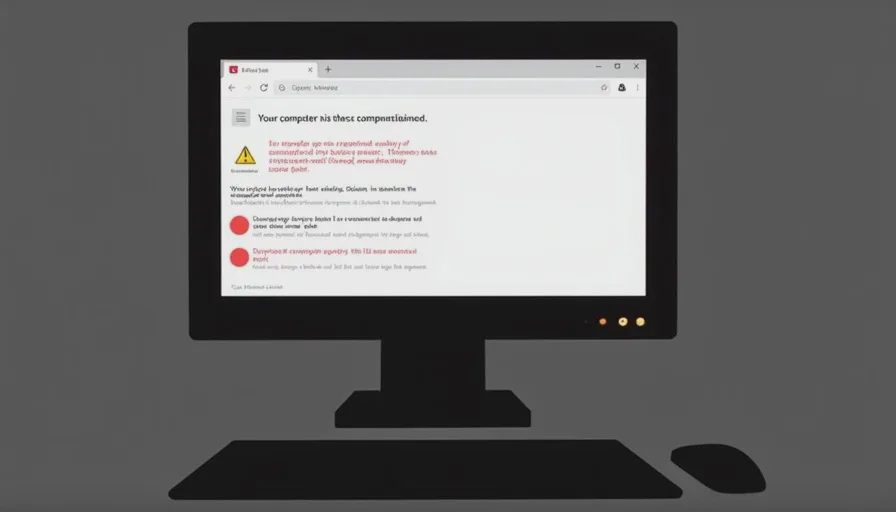
Last spring, a retired teacher in Ohio got a pop-up on her computer. It said her Microsoft account had been "compromised" and she needed to call a toll-free number immediately. She called. The man who answered was polite, professional, and spoke with a calm American accent. He told her not to worry — he could fix it remotely.
She followed his instructions. She installed an app. She gave him a six-digit code. And then she watched her mouse cursor move across the screen by itself, opening her bank account, transferring $12,000 to a "secure holding account" while she sat there, frozen, watching it happen.
That moment — when the cursor moves without your hand — is the exact second "tech help" becomes theft.
Why this scam is uniquely cruel
Most scams are invisible. You click a link, you enter your password, and later you find out your account was drained. You don't see it happening.
Shared screen fraud is different. You watch the theft unfold in real time. The scammer doesn't steal from you behind your back. They make you hand over the keys, then drive the car while you're in the passenger seat.
The emotional damage is deeper because victims feel complicit. "I gave them access. I watched them do it. Why didn't I stop them?"
The answer: because they engineered the situation so you couldn't stop. The moment you gave them control, you lost the ability to see what they were really doing. And they moved fast — faster than your brain could catch up.
The script: how they get you to install the app
I've reviewed over 40 recordings and transcripts of shared screen scam calls. The script is formulaic. Here's the breakdown.
Phase 1: The trigger (inbound contact)
The victim usually initiates contact after seeing a pop-up, an email, or a text that says:
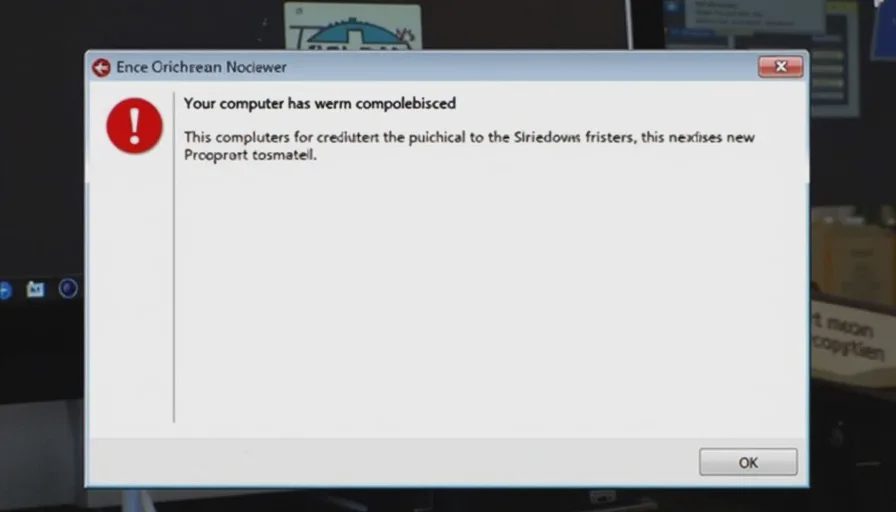
"Your computer has been compromised. Call Microsoft Support immediately."
"Your Amazon account has been suspended. Verify now to restore."
"We detected fraudulent activity on your bank account. Call this number."
"Your antivirus subscription has expired. Renew now to avoid data loss."
What's happening: The pop-up or message is fake. The scammer has placed it on your device through a malicious ad or a compromised website. You're calling them — which makes it feel legitimate.
Phase 2: The reassurance
"I'm Jeff from Microsoft Security. I see the alert on my screen right now. Don't worry — we deal with this all the time. Can you confirm your name for me?"
What's happening: They sound confident, official, and slightly bored — like a real customer service rep who's done this a thousand times. They use common names ("Jeff," "Mike," "Sarah") and generic American accents to build trust. They don't sound desperate because they want you to feel safe.
Phase 3: The "fix"
"I'm going to send you a link to our secure diagnostic tool. Just tap the link and install the app. It's Microsoft-approved — you can see the certificate right there."
What's happening: The link is to a legitimate remote-access tool — TeamViewer, AnyDesk, or a specialized screen-sharing app. These are real applications used by real tech support. That's why they don't trigger antivirus alerts. The scammer isn't hacking your device. They're asking you to open the door.
Phase 4: The code handoff
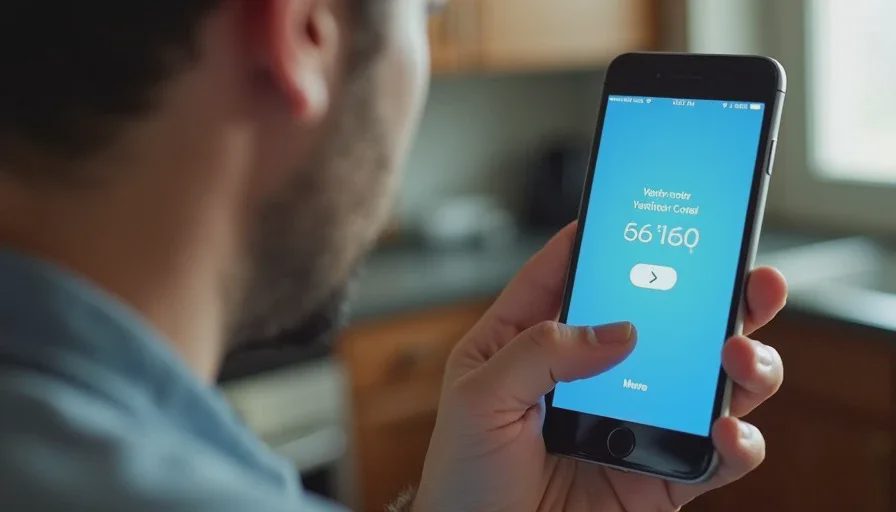
"Now I'm going to send a six-digit verification code to your phone. Please read it back to me so I can confirm your identity."
What's happening: This is the critical moment. The code isn't a verification — it's the password to connect to your device. When you read it back, you're giving them remote control. They've disguised the true purpose with familiar language ("verification," "identity confirm").
Phase 5: The takeover
"Okay, I'm connected now. Let me just run a quick diagnostic... Hmm, I see some suspicious activity here. Let me show you."
What's happening: The scammer opens your browser, types your bank's URL, and logs in — using passwords you've saved or resetting them with a "forgot password" link (which triggers a text code to your phone, which you also read to them). Then they transfer money while narrating fake steps: "Now I'm isolating the threat... this will just take a moment..."
The exact moment it turns from help to theft
There's a split second you can identify, even if you're already on the call.
It's when the cursor moves to your banking website without you asking.
The scammer will try to bury it: "I'm checking your financial accounts for unauthorized access." That's their cover. But here's the rule:
If you didn't type the URL yourself, and you didn't start the transaction, the session is now hostile.
Your bank doesn't need a third-party technician to check your account. No legitimate support call ever requires remote access to your bank, your Zelle, or your Venmo. Period.
What to do if you're already on the call
If you're reading this while on the phone with someone who's asking for remote access — stop reading and do this:
Step 1: Hang up.
Not "let me think about it." Just end the call. Scammers rely on momentum. Breaking the connection breaks their rhythm.
Step 2: Disconnect the device from the internet.
If you've already installed a screen-sharing app but haven't given the code yet — turn off Wi-Fi and cellular data. That prevents any connection from completing.
If you've already given the code — unplug your router or turn off Wi-Fi immediately. That cuts the remote session. They may have moved files or installed other software, but cutting the connection stops the active session.
Step 3: Uninstall the remote-access app.
Go to your settings and uninstall TeamViewer, AnyDesk, or whatever app you installed. Then restart your device.
Step 4: Call your bank — from a different device.
If you saw them access your financial accounts, call your bank's fraud line using a different phone — not the one you used for the scam call. Tell them you believe your accounts were compromised and ask them to freeze or flag transactions.
Step 5: Run a full antivirus scan.
After you're disconnected, run a complete system scan using your security software. This catches any additional software the scammer may have installed during the session.
One question that stops the scam early
If you're on the call and they ask you to install an app, ask this:
"If you're from Microsoft, why is this app called TeamViewer and not Microsoft Support?"
Or, even simpler:
"What's my support ticket number? I'll call Microsoft's main number and give it to them."
The scammer will deflect, get defensive, or escalate the urgency. Those responses are red flags. Hang up and dial the official support number directly from the company's legitimate website.
How to talk to older family members about this
This scam targets older adults disproportionately. They're comfortable with the idea of "technical support" and often trust authority figures.
Here's the simplest rule to teach them:
"No one — not Microsoft, not Apple, not Amazon, not your bank — will ever call you and ask for remote access to your computer. If they do, it's a scam. Just hang up. No exceptions."
If they use remote access apps normally (for family tech support), set up a rule: they only install software when a trusted family member is physically present or on a video call they initiated.
What a real support call looks like
For comparison, legitimate tech support:
Never calls you first (they respond to your call)
Never asks for remote access unless you initiated the request
Never asks for your password
Never tells you to install third-party software during a cold call
Never pressures you to act quickly
If you call Microsoft or Apple, they may use remote access — but you call them, and the process is clearly explained on their official website.
A real victim's story (shared with permission)
I spoke with a victim who lost $8,000 to this scam. She told me:
"The worst part wasn't the money. It was that I sat there and watched my savings leave, and I didn't stop it because he was still talking to me, explaining each step, telling me it was routine. I felt so stupid afterward."
I told her what I tell everyone who's been through this:
You're not stupid. You were carefully guided into a situation you'd never encountered before, by someone who does this for a living. The shame is the scammer's best weapon — it keeps you quiet, and it keeps you from reporting it in time.
She didn't fall for a bad link. She fell for trust. And trust is what makes us human — not dumb.
No letters yet.