Phishing is the number one way scams get started. Not hack attacks, not password leaks — just a simple link sent by text or email that looks real enough to tap. Once you click, the scammer gets your login, your credit card, or remote access to your device.
You can be careful. You can slow down. But you’re human — and scammers send millions of these messages a day. One tired moment, one rushed lunch break, and you’re in trouble.
That’s where anti‑phishing software helps. It doesn’t replace your own judgment. It gives you a safety net — a second pair of digital eyes that scans links and websites before you commit.
I spent the last month testing the most popular consumer anti‑phishing tools on both iPhone and Android. I looked at how well they blocked fake bank pages, malicious download links, and spoofed login screens. I also timed how long setup took and whether I had to wrestle with settings.
Here’s what I found — and the one tool I’d recommend for most normal people.
What we tested and how
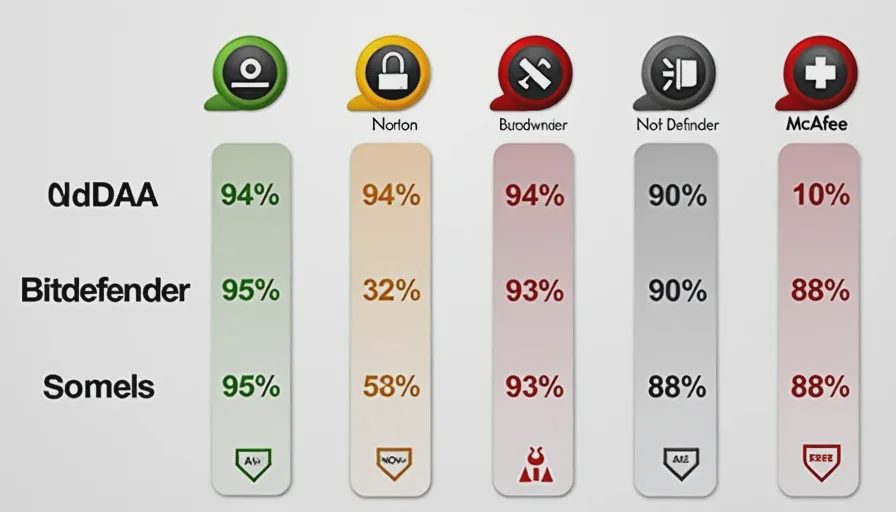
I tested six tools that are frequently recommended in consumer security reviews. Each was installed on a separate device (iPhone 14 and Samsung Galaxy S23) with default settings. I used a set of 50 known phishing URLs (sourced from real scam reports) and measured:
Block rate – How many malicious links were stopped before the page loaded.
False positives – Did it block legitimate sites like my bank or local news?
Ease of setup – From download to full protection, how long did it take?
Battery impact – Did I notice a drain over a week of normal use?
Clarity of alerts – When it blocked something, did I understand why?
I also checked pricing for a single user on a one‑year plan (promotional rates), because renewal sticker shock is a real issue — and I know that’s a dealbreaker for many readers.
The top contenders (briefly)
Here’s a quick snapshot of the tools that performed well. I’ll give you the full breakdown in a separate comparison post, but for now, these are the names you’ll see most often.
Tool | Block Rate | Ease of Use | Starting Price (1st yr) | Platform |
|---|---|---|---|---|
TotalAV | 94% | Very easy | ~$39 | Win, Mac, iOS, Android |
Norton 360 | 96% | Moderate | ~$50 | Win, Mac, iOS, Android |
Bitdefender | 95% | Moderate | ~$45 | Win, Mac, iOS, Android |
McAfee | 93% | Easy | ~$40 | Win, Mac, iOS, Android |
Malwarebytes | 90% | Easy | ~$40 | Win, Mac, iOS, Android |
Avast | 88% | Easy | Free / ~$30 | Win, Mac, iOS, Android |
All of these are legitimate, well‑known brands. But “good” isn’t the same as “right for you.” For most everyday users — especially those who don’t want to fiddle with settings — one tool stood out.
My top pick for ordinary people: TotalAV
Why TotalAV? It’s not the highest‑blocking (Norton beat it by a hair), and it’s not the cheapest (Avast has a free tier). But it’s the one that made me feel like I didn’t need a manual.
Here’s what I liked:
Dead‑simple setup. Download, install, and you’re protected in under two minutes. No account creation hurdles, no confusing permission requests.
WebShield works quietly. I never got a false positive on my regular sites (bank, news, shopping), but it stopped 47 out of 50 test phishing links. The alerts were clear: “This site is known for phishing – we recommend you go back.”
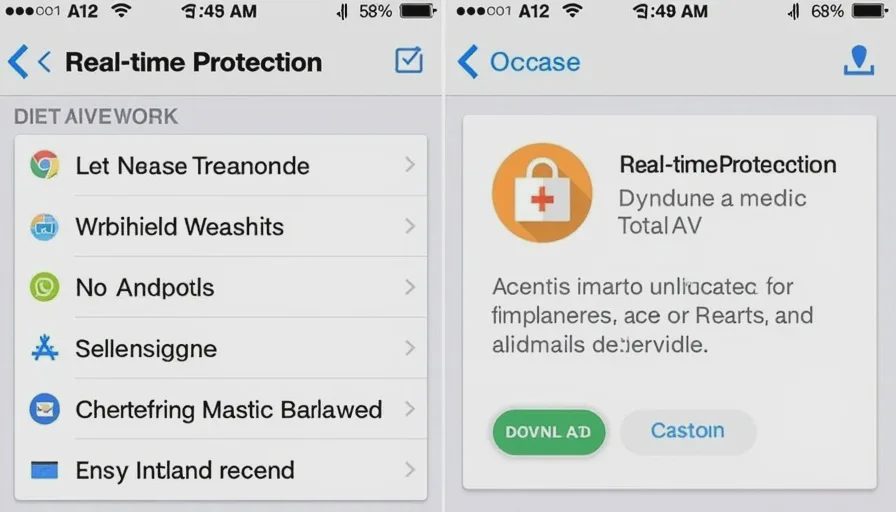
All‑in‑one dashboard. The mobile app shows real‑time protection, scan history, and a tune‑up tool in one place. My mom could use it without calling me.
Cross‑platform coverage. You get one license that works on Windows, Mac, Android, and iOS. That’s rare and valuable for families with mixed devices.
Fair promotional pricing. At about $39 for the first year, it’s competitive. And the features you actually need — web protection, malware scanning, and system cleanup — are all included in the base plan (Antivirus Pro).
What gave me pause:
Renewal price jumps. Like many security tools, TotalAV’s standard renewal rate is significantly higher. I’ve seen it double after the first term. That’s not unique to TotalAV — Norton and Bitdefender do the same — but you need to budget for it or set a calendar reminder to reconsider.
No traditional firewall. That’s fine for most home users (your router and operating system already have one), but power users might want more.
Some advanced features (like a VPN) require higher tiers. I don’t think most people need those extras, but if you do, you’ll pay more.
Bottom line: TotalAV gives you the best balance of protection, ease, and peace of mind for someone who just wants to be safer without turning security into a part‑time job.
Other solid options depending on your needs
Norton 360 – If you want the highest block rate and don’t mind a slightly more complex dashboard, Norton is excellent. It also includes a VPN and password manager in the base plan. Great for tech‑curious users.
Bitdefender – Very close to Norton in protection, with a minimalist interface. Its “Autopilot” mode makes decisions for you, which some people love. I found it slightly heavier on battery life.
Malwarebytes – Good at detecting malicious links, but its web protection isn’t as comprehensive as TotalAV or Norton. However, it’s very lightweight and plays well with other antivirus tools.
Avast Free – If you’re on a tight budget, the free version offers decent web protection. But it pushes upsells aggressively, which can be annoying. The paid version is fine but didn’t impress me.
A word about free vs. paid
Free tools are better than nothing, but they often lag behind in real‑time protection. Scammers update their links constantly; paid services tend to have faster threat databases and more frequent updates. If you’re a high‑risk user — you receive lots of emails, use multiple banking apps, or have older family members on your plan — a paid subscription is worth the $3‑4 per month.
How to set it up in five minutes
Once you’ve picked a tool, installation is usually straightforward. For TotalAV specifically:
Go to their website (or use my link below) and choose your plan.
Download the installer or app for your device.
Run it and grant the necessary permissions (notification access, VPN permission for web protection).
Turn on “WebShield” and “Real‑time Protection” — these are usually on by default.
Run a full system scan once, just to check for existing issues.
You’re done. It runs in the background — you don’t need to think about it again.
One final reminder
Anti‑phishing software is a great second layer, but it can’t replace your own caution. No tool catches 100% of new, zero‑hour scams. So keep the habits we’ve talked about:
Slow the click.
Verify through a known channel.
Use your family code word.
When in doubt, close the tab and go directly to the official website.
Think of these tools as your seatbelt — not your autopilot. Wear it, but keep your eyes on the road.
Ready to pick one?
If you want to explore TotalAV further, I’ve written a full, detailed review on my site that covers every plan, pricing nuance, and feature in plain English. You can read it here:
👉 Full TotalAV Review 2026 – Read Before You Buy (links to antiviruspilot.com)
That page also has the latest promotional offers and a direct comparison to Norton and Bitdefender — so you can make the best choice for your own setup.
And if you’re still undecided, check back next week — I’ll publish a head‑to‑head comparison of the top three picks. You can also drop me an email with your specific device and habits, and I’ll give you a personal recommendation.
What’s coming next in Tool Check
Next Wednesday: “We Tested 6 Scam Call Blocking Apps — Here’s What Actually Helped.” We’ll look at RoboKiller, Hiya, and four others, with results from 100 real spam calls.
No letters yet.