If you are learning how to set up family password manager for free, the goal is not to place every household login in one shared spreadsheet. It is to help each person create strong, unique passwords while giving the family a safe way to handle shared accounts, recovery, and emergencies. A free setup can work well, but only if you separate private passwords from genuinely shared ones.
The first rule is simple: never give everyone the master password to one account. That turns one stolen password into a household-wide problem. Instead, each adult should have a separate password-manager account with a different master password. Children can have supervised accounts when appropriate, and shared services such as streaming or a family utility account can be handled separately.
Choose a free setup that matches your household
The easiest way to set up family password manager for free is to start with a reputable free-tier password manager or a built-in password manager already connected to your devices. Google Password Manager, Apple Passwords, Microsoft Edge, and Firefox all offer password storage, while services such as Bitwarden and Proton Pass offer free individual plans. Features change, so read the current plan details before assuming that family vaults or shared collections are included.
A free individual account is often enough for one person. The challenge is sharing. Some services let users share selected credentials, while others reserve family sharing for paid plans. If your chosen tool does not support secure sharing, do not solve the problem by texting a password or keeping a file called “all passwords” in Google Drive. Either pay for the family feature if it fits your budget or keep shared credentials in a limited, carefully controlled process.
For a technical household, KeePassXC is another free option. It stores an encrypted database locally, and a family can place that database in a cloud folder. However, syncing conflicts, forgotten master passwords, and damaged files can create real headaches. This approach works best when one person is comfortable making encrypted backups and testing recovery.
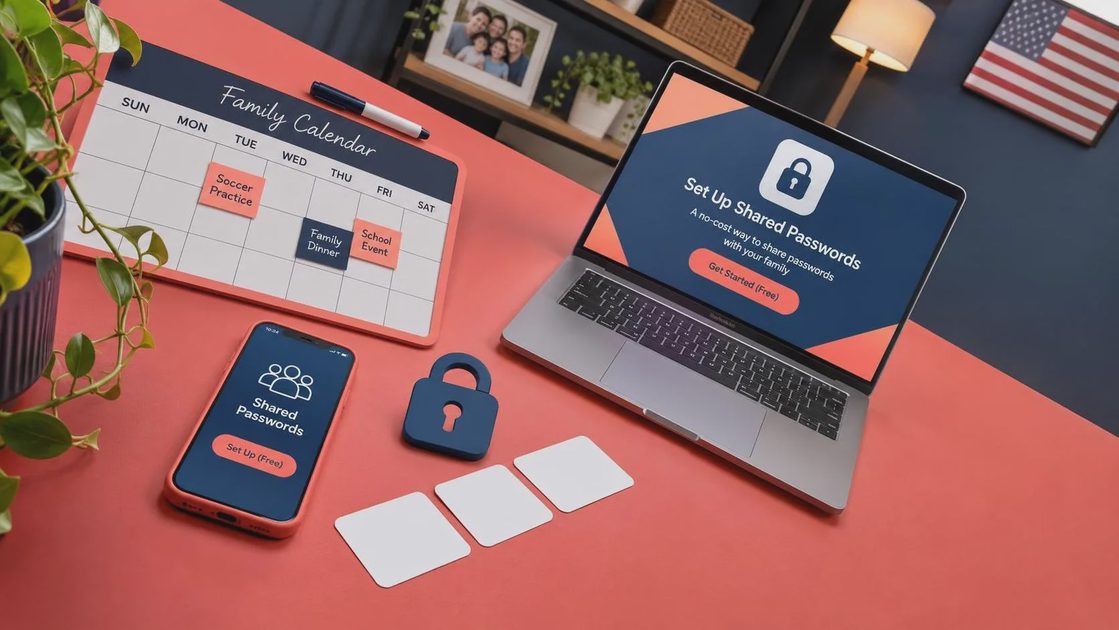
Build separate private vaults before sharing anything
Knowing how to set up family password manager for free starts with account boundaries. Have each person install the same manager on their phone and primary computer, then create a unique master password that is long and memorable. A sentence with several unrelated words is easier to remember than a short password with random symbols. Do not reuse an email password as the master password.
Turn on multifactor authentication for every password-manager account. An authenticator app is usually stronger than text-message codes, although text verification is still better than no second step. Store the manager’s recovery codes in a safe place, such as a locked paper file or a secure offline location. Do not save recovery codes only inside the vault that they are meant to unlock.
Importing old passwords can feel like a chore, but it reveals the accounts that need attention. Start with email, banking, health portals, shopping sites, social media, and payment apps. Change reused passwords first. If the manager flags 40 accounts using the same password, do not panic and attempt everything in one night. Fix the most valuable accounts, then work through the rest over several short sessions.
Decide what the family should actually share
A practical free setup shares fewer credentials than most families expect. Shared items might include a streaming service, a home security account, a school activity portal, or an account used to manage a family phone plan. Personal email, banking, medical, workplace, and social accounts should remain private unless there is a specific caregiving reason to share access.
When a password manager supports secure sharing, send only the selected login to the intended person. Confirm that the recipient accepted it before deleting the old copy. If the free plan does not support sharing, use the service’s official family feature, create a separate household login where the company allows it, or have the account owner sign in when needed. Never share a master password to make a free plan behave like a family plan.
This is also where scam resistance improves. A person who sees a login saved in the manager is less likely to trust a text asking them to “verify” that password. The manager may not fill credentials into a fake domain, giving the family a useful warning. Slow the click: open the real app or type the known website yourself instead of using a link from an urgent message.
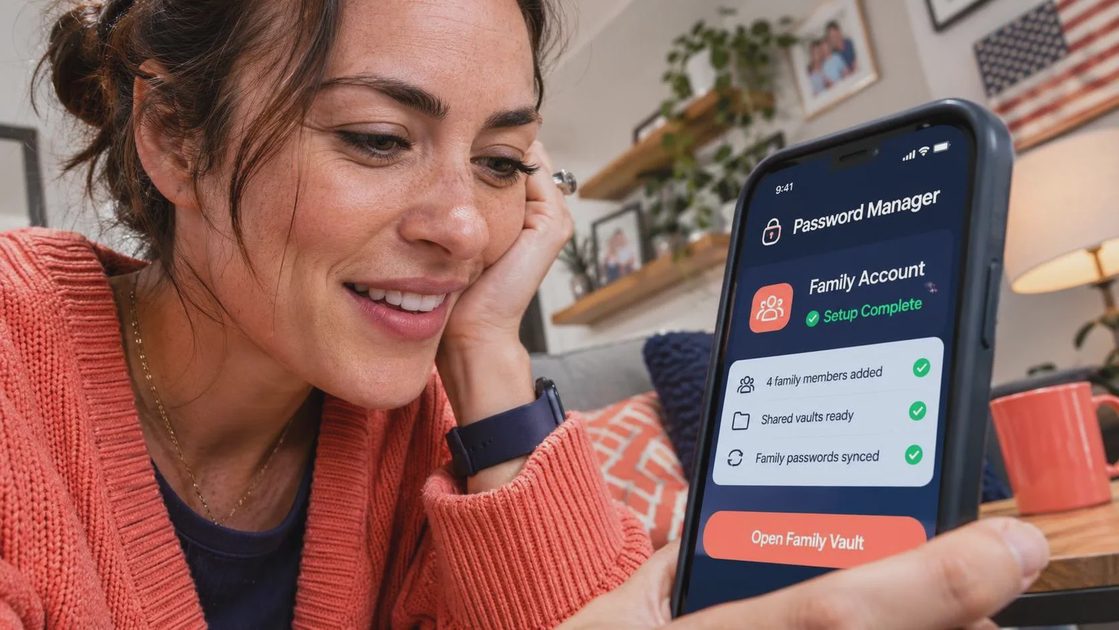
Create a recovery plan before someone loses a phone
The safest answer to how to set up family password manager for free includes a written recovery plan. Decide who can help if a phone is lost, a laptop breaks, or someone forgets a master password. Write down the manager name, account email, backup method, and location of recovery codes. Do not write down the master password in the same document.
For a spouse or trusted adult, consider a sealed emergency instruction sheet stored at home. It can explain where recovery codes are kept and which accounts are especially important, without listing every password. If a family member is helping an older relative, set up the relative’s own account rather than quietly storing all credentials in the helper’s vault. That preserves access boundaries and makes future handoffs cleaner.
Test the plan once. Sign in on a second approved device, retrieve a recovery code, or confirm that an emergency contact understands the steps. A plan nobody has tested is only a hopeful note. Also review devices that remain signed in. Remove access from an old phone, a sold laptop, or a former household member’s device.
A 30-minute setup checklist
To set up family password manager for free in one sitting, begin by choosing one reputable tool that works across the devices your household actually uses. Next, create individual accounts and strong master passwords. Add multifactor authentication and save recovery codes offline. Import or save the most important accounts, starting with email and financial services.
Then create a short list of truly shared logins. Check whether the free plan offers secure sharing, and do not improvise with text messages or an unencrypted spreadsheet. Change reused passwords and turn on alerts for suspicious sign-ins wherever the service offers them. Finally, schedule a monthly ten-minute review to remove old accounts, update recovery details, and check who still has access.
The best free system is the one people will use consistently. If your household needs shared vaults, administrator controls, or support for several adults, a paid family plan can be worth the monthly cost. But knowing how to set up family password manager for free gives you a solid starting point: separate accounts, strong master passwords, limited sharing, and a recovery plan. That combination blocks more everyday trouble than a complicated system nobody opens.
Common mistakes that undo the protection
Families often do the hard work and then leave the manager unlocked on every device, reuse the same master password, or approve a login request while distracted. Turn on automatic locking and use device biometrics where available. Biometrics should unlock the manager locally; they should not replace a strong master password.
Another mistake is treating a password manager as proof that a message is safe. A scammer can still send a convincing fake delivery notice, bank alert, or account warning. The manager protects credentials, but it cannot make a rushed decision for you. If the message wants speed, you want distance. Open the official app, verify the request through a known phone number, and only then sign in.
Start small, explain the reason behind each step, and avoid shaming the family member who has reused passwords for years. The point is safer habits, not a perfect score. A calm, free setup that is reviewed regularly is far more useful than an expensive tool that sits unused.
No letters yet.