Learning how to secure home wifi does not require a cybersecurity degree or a weekend spent decoding router settings. Most of the useful work comes down to a few ordinary actions: replace weak login details, install updates, remove devices you do not recognize, and separate visitors from the network your family uses every day. The goal is not to panic about every unfamiliar device. It is to make unwanted access harder and visible problems easier to spot.
Your home network connects phones, laptops, televisions, cameras, printers, smart speakers, game consoles, and sometimes medical or security equipment. If the router is poorly protected, one weak setting can affect many devices at once. Slow the click, take one setting at a time, and use this guide as a practical reset.
Start with the router, not the WiFi name
The router is the small box from your internet provider or a company such as TP-Link, Netgear, Eero, or ASUS. It directs traffic between your devices and the internet. To begin, open the provider’s official app or type the router’s printed web address into a browser. Avoid links from random search ads or messages claiming your router needs urgent repair.
Sign in with the router administrator password, which is separate from the WiFi password in many setups. If the password is still the factory default, change it immediately. Use a long, unique passphrase with several unrelated words, numbers, and punctuation. Do not use your address, a child’s name, a pet’s name, or a password you already use for email or banking.
If you are learning how to secure home wifi after moving into a house or apartment, reset the router before connecting personal devices. A previous resident, housemate, or installer might still know old credentials. A factory reset can help, but it erases custom settings, so save the internet provider’s connection information first if your service requires it.
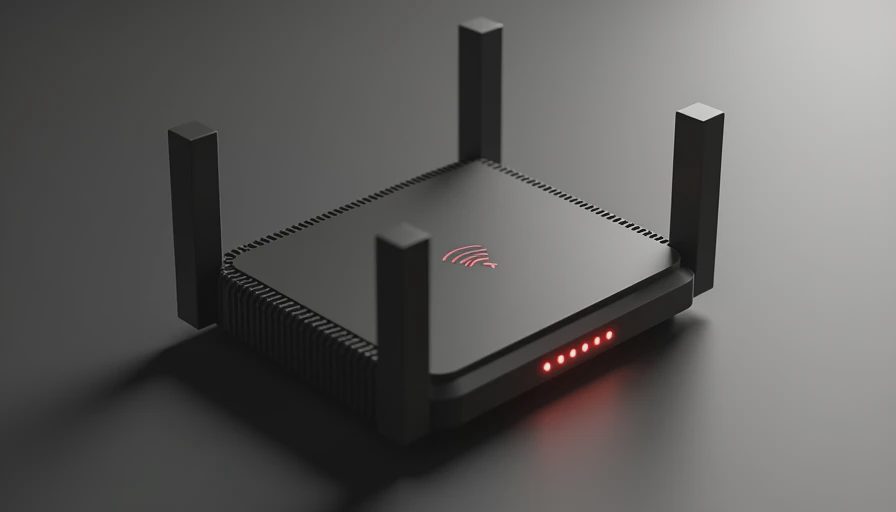
Choose strong wireless protection
In the wireless settings, look for the security option. WPA3 Personal is the newest common choice for compatible home equipment. WPA2 Personal, usually listed as WPA2-AES, is still a reasonable fallback when an older printer, camera, or laptop cannot use WPA3. Avoid WEP, WPA, and settings described as mixed legacy security unless your provider gives you a specific compatibility reason.
Change the WiFi password even if the network name stays the same. A long phrase is easier to remember than a short pile of random characters, and it is far safer than a familiar word followed by “123.” For example, a phrase built from four unrelated words is stronger than a name and birth year. Never post the password on a public social profile or send it in a group chat that includes people you do not know well.
Changing the network name can also help. Do not include your street number, last name, apartment number, or router model. A neutral name gives strangers less information and makes it less obvious which network belongs to your home. This is a small privacy improvement, not an invisibility cloak.
Update firmware and remove surprise devices
Router firmware is the software that runs the router. Updates can repair security flaws, improve stability, and add support for newer protections. In the router app or administration page, look for Firmware Update, Software Update, or Automatic Updates. Turn on automatic updates when the manufacturer supports them, then check the date of the last installation.
While you are there, open the connected-device list. You might see a phone listed by a confusing manufacturer name, a television with a generic label, or a smart bulb that appears only when it is powered on. Match unfamiliar entries against the devices in your home before assuming an intruder is present. Disconnect old phones, former roommates’ devices, retired cameras, and gadgets you no longer own.
If one device remains unexplained, change the WiFi password and reconnect your household devices manually. That step removes stored access from devices that should no longer be online. If the mystery entry returns, contact the router maker or internet provider through an official support channel.
Set up a guest network for visitors and smart devices
A guest network creates a separate wireless lane for visitors. Many routers let you name it, set a different password, and prevent guests from seeing shared printers or other devices on the main network. Turn on the option that blocks guest access to the local network when it is available.
A guest network is also useful for lower-trust smart devices. A bargain camera, smart plug, or older television may receive fewer updates than a laptop or phone. Placing it away from your primary network limits what it can reach if its account or software is compromised. This does not replace changing default passwords or updating the device, but it reduces the blast radius of a problem.
When someone asks for the household WiFi password, offer the guest network instead. You can disable it when nobody needs it. That is less awkward than changing the main password after every party, contractor visit, or short-term rental guest.

Protect the devices connected to your network
Knowing how to secure home wifi is only part of the job because a protected router cannot fix an unlocked phone or an outdated camera. Install operating-system updates on phones, computers, tablets, televisions, and streaming boxes. Remove apps you no longer use, especially apps that still have access to your location, microphone, contacts, or files.
Turn on screen locks and use biometric unlocking where it is convenient. For accounts controlling cameras, thermostats, or speakers, use unique passwords and multi-factor authentication. If an app offers an authenticator app or security key option, that is generally stronger than relying only on text messages, although any available second step is better than a password alone.
Be selective with remote access. Features such as remote administration, port forwarding, and universal plug and play can be useful in specific situations, but they also create additional paths into your network. If you do not know why one is enabled, look up the router manufacturer’s instructions or ask official support before changing it.
What to do if you suspect someone got in
Do not start by confronting a neighbor or posting accusations online. An odd device name, a brief internet slowdown, or a streaming error is not proof of a break-in. First, save screenshots of the connected-device list and any security alerts. Note the date, time, device name, and what you observed.
Next, change the router administrator password and WiFi password from a device you trust. Install available firmware updates, remove unknown devices, and review guest-network settings. Then change passwords for important accounts, starting with email. Email often controls password resets for banking, shopping, and payment services. Use multi-factor authentication and check account activity for unfamiliar logins, recovery addresses, or forwarding rules.
If a camera, doorbell, or smart lock is involved, contact the manufacturer through its official website. If money or identity information was exposed, contact the financial institution directly using the number on a card or statement. Never pay a caller who says they can “clean” your router immediately.
A five-minute monthly network check
The most useful version of how to secure home wifi is a routine you will actually repeat. Once a month, open the router app and review connected devices. Confirm automatic updates are enabled, remove equipment you no longer use, and check that the guest network has a password. Every few months, review the administrator account and replace credentials if they were shared widely.
Keep a simple household note with the router brand, support website, internet provider, and a list of your major connected devices. Do not write active passwords in that note. This record saves time when a device disappears, a family member gets a replacement phone, or support asks which hardware you own.
If a message claims your WiFi is infected and demands a payment, pause. Your internet provider generally does not need a stranger to take control of your computer through a surprise phone call. If the message wants speed, you want distance. Close it, find the provider’s official contact information yourself, and verify the issue without giving remote access or payment details.
No letters yet.