If you’re wondering how to remove virus from android phone without factory reset, start by disconnecting the phone, removing any suspicious app, and running Google Play Protect. Many problems can be resolved without erasing your photos and messages. But a frightening pop-up alone doesn’t prove your phone is infected, and some infections need more help. Slow the click: don’t pay or install anything from the warning.
First, tell a fake warning from a real problem
A web page that announces “your phone has a virus” and demands an immediate scan is often an ad or scam. The pressure is the point: it wants you to tap a button, install an app, call a number, or enter payment information. Close the browser tab instead. If it won’t close, open your recent apps screen and swipe the browser away.
A more concerning pattern is an unfamiliar app you can’t explain, ads appearing outside your browser, settings changing unexpectedly, or a phone that continues acting strangely after a restart. None of these proves malware on its own, but they’re good reasons to investigate.
If you entered a password, payment information, or a verification code into a suspicious page, address that separately. Removing an app won’t undo information already sent to a scammer.
How to remove virus from android phone without factory reset
Start with airplane mode. Turn it on from the quick settings panel, then check that Wi-Fi and Bluetooth are also off. This can interrupt a suspicious app’s connection while you investigate, though it won’t remove the app or reverse anything already sent. You’ll need to reconnect briefly for scanning and updates later.
Open Settings, then Apps, and look through the full app list. Menu names vary by phone. Pay attention to apps installed shortly before the trouble began, especially anything downloaded from a link, a text message, or a site outside the Play Store. Tap a suspicious app and choose Uninstall. Don’t remove an app just because its name is unfamiliar; search for it on a separate, trusted device if you’re unsure whether it belongs to Android or your phone manufacturer.
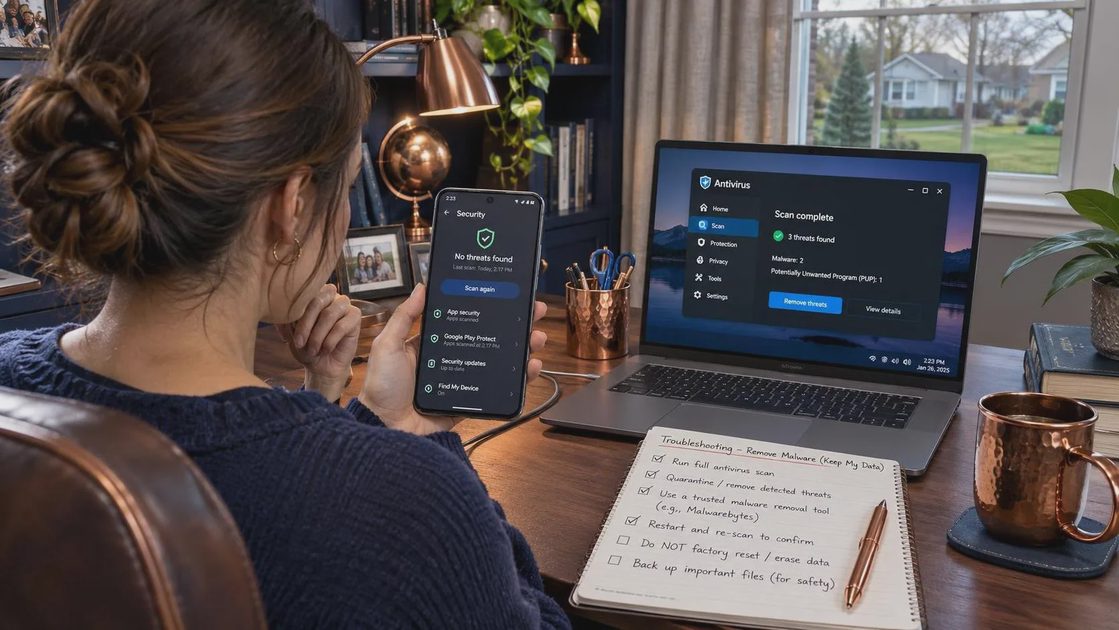
If Uninstall is unavailable, check whether the app has special control over the device. In Settings, search for “device admin apps” or “device administrators,” and turn off administrator access for the suspicious app before trying again. Also search Settings for “Accessibility” and switch off any accessibility service you don’t recognize. Don’t disable protections or services you need without checking what they do.
If the app still resists removal, try safe mode. On many Android phones, holding the power button and then touching and holding Power off brings up a safe mode option. The exact steps vary by manufacturer, so consult its support page from another device if that doesn’t work. Safe mode temporarily prevents most downloaded apps from running; it does not delete them. Uninstall the suspicious app in Settings, then restart normally.
Scan and update the phone
Reconnect to a trusted network. Open the Google Play Store, tap your profile icon, and select Play Protect. Run a scan and follow its instructions if it flags an app. Play Protect is a useful built-in check, not a guarantee that every threat will be caught.
Next, install available Android security updates. Look under Settings for System, Security, or Software update; the location depends on the phone. Update your apps through the Play Store too. Updates can close known security gaps, but they won’t necessarily remove an infection that is already present.
Avoid downloading a random “virus cleaner” promoted by a pop-up or text message. The supposed fix can be the app that causes the problem. If you want another opinion after using Play Protect, choose a reputable mobile security provider through its official website or the Play Store, and review what access the app requests. You don’t need to buy a subscription just because a warning says time is running out.
Stop browser pop-ups and unwanted notifications
If the problem happens only while browsing, check the browser before blaming the whole phone. In Chrome, open the three-dot menu, go to Settings, then Site settings. Review Notifications and remove or block sites you don’t recognize. You can also review the Pop-ups and redirects setting there. Other Android browsers have similar controls, although the menu names differ.
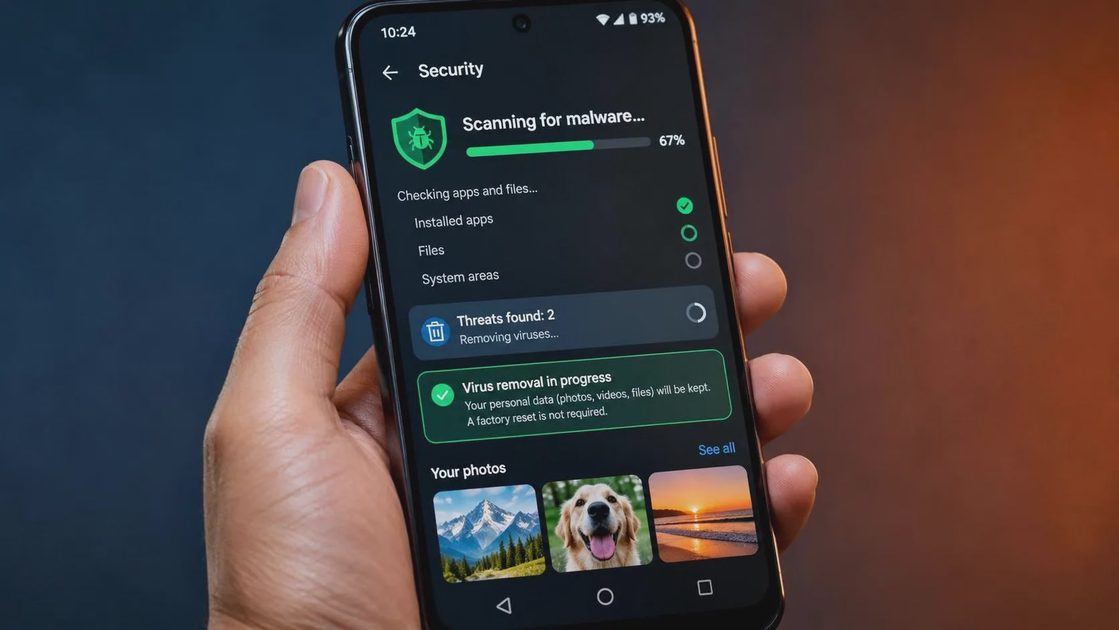
A site notification permission can let a sketchy page keep sending alarming messages even after you leave it. Blocking that permission stops those notifications; it is different from uninstalling an infected app.
If necessary, clear browsing data in your browser’s privacy settings. Clearing cookies can sign you out of websites, so have your legitimate account recovery methods handy. Don’t assume that clearing browser data removes a malicious app installed on the phone.
Protect accounts and money
If you typed a password into a suspicious page, change it from another device you trust. Start with your email account, because it can be used to reset other passwords, then change any other account where you reused that password. Review account recovery details and active sessions, and enable two-step verification where available. If you gave someone a verification code, tell the affected provider immediately.
If you shared card or bank details, contact the financial institution using the number on your card or its official app—not a number in the warning. For Zelle, Venmo, or Cash App activity, contact the relevant bank or service promptly and report unauthorized transfers. Save screenshots and transaction details, but don’t pay anyone who promises to recover the money for an upfront fee.
When a reset or professional help makes sense
A factory reset is a fallback, not the first move. Consider it if a suspicious app returns, you still can’t remove it, or the phone keeps showing unexplained behavior after the steps above. Contact your phone manufacturer’s official support or a trusted repair professional if you need help identifying what remains. A work or school phone should go to its IT administrator before you change management settings.
Before a reset, back up important photos and documents, make sure you can sign back in, and check the manufacturer’s instructions. Afterward, reinstall apps selectively from trusted sources rather than automatically bringing back every old app. If symptoms continue after a reset, get professional support; a reset is not a universal guarantee.
You don’t have to solve everything at once. Get the suspicious app off the phone, secure any exposed accounts, and treat urgent cleanup demands as a reason to pause—not a reason to tap.
No letters yet.